



 Embed Your Surveys in a website or blog, using an IFrame
An iFrame (Inline Frame) is an HTML document embedded inside another HTML document on a web site or
blog. This method gives you control over the height and width in the actual embed code. It is the most
reliable method for displaying a survey on your web site. Embedding surveys in your web site or blog,
will allow your visitors to directly participate in your survey without ever leaving your site or opening
a new window. This way, surveys will become a natural part of your web site, and with SurveyLegend’s
endless visual customizations you can upload your own background and make your survey look completely
integrated with your web site. You can even make it into an interactive product gallery, where people
can vote on your products while viewing them, or give feedback and share their ideas with you.

Questionnaires made with SurveyLegend can easily be embedded on any website or blog. This makes them feel like and integrated part of the web-page they are embedded in.
src= "URL-of-your-Survey"
width="100% "
height="1000px "
style="frameborder: 0; border: 0; margin: 0 auto;"
></iframe>
How to use the IFrame code
To embed your survey into a webpage, simply follow the steps described here:
- Select your survey, and go to the “share” step.
- Copy the generated Iframe code which is unique for your survey.
- Then go to your website’s admin panel or to the HTML source of your site or blog, and paste the iFrame code in it, where desired.
- Save your page, and enjoy a live survey right inside your own web site!
- Just notice that instead of this text: “URL-of-your-Survey” you get the actual survey link in our app, when you copy it from the “share” step.
Customizing your IFrame
How your embedded IFrame appears in a page depends on where you are embedding it and what HTML element is containing it. If the container is too small it may affect how the IFrame is rendered on your page. You can modify the width or height of the IFrame if desired.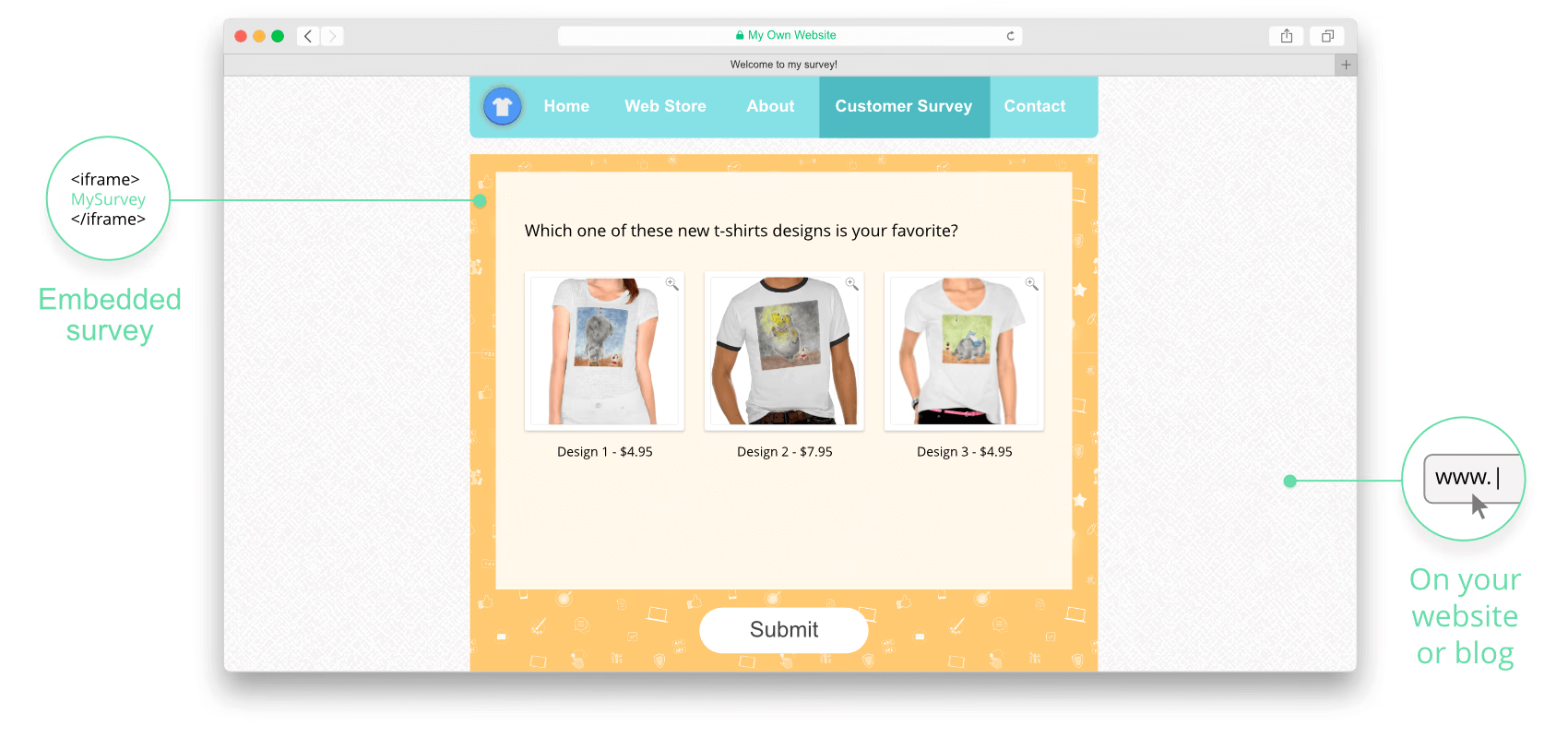
Embed surveys that are beautiful in your website or blog
 Transparent background for IFrame
Turn this setting ON to make the background of the IFrame fully transparent. This way, when the survey is loaded in the IFrame, it won’t have any background image, and if the HTML page that contains your survey has a background image, that image will be displayed in the background of the survey too. This makes the questionnaire seamlessly look like a part of your website.

This example compares an embedded survey with its origianl background, versus a survey that is loaded without any background in a transparent IFrame.
This setting only works for embedded surveys using our IFrame code, which means if you load the survey using the hosted link, the background that you have chosen in the ‘Design step’ will be loaded. So, don’t worry for sharing the survey via hosted link.
 IFrame notification on submit
On the ‘Share’ step where you see the generated IFrame, you see a setting called “IFrame notification”. Enabling this setting allows you to send a notification message to the HTML page which contains your IFrame, as soon as responses are submitted.
This opens up many possibilities for you. For instance you can hide the IFrame containing the survey, load another questionnaire, send the user to another page, or perform any desired actions after your respondent submits their answers.

Simply copy the generated script and paste it in your HTML code where the IFrame is embedded, or create a separate script-file and load it in the same web-page.
This feature will empower you to take control of any event that you desire to happen after your respondents press the SUBMIT button. To achive such a level of control, you would normally need to have your own server and setup webhooks, which would be quite complex. But with this feature, all you need is your own site and you own script.
 Include responses in notification
Enable this setting to include the submitted responses in the notification message to the HTML page which contains your IFrame.
This opens up limitless possibilities for you. For instance you can save the data to your own system directly, without using webhooks, you can perform actions depending on responses to specific questions like displaying custom thank you pages or loading follow-up surveys, based on respondents’s answers.
Responses that potentially could contain sensitive information will be passed to the site containing the IFrame, which could be infected with malicious scripts listening to messages from all IFrames, it can be using plain unencrypted http requests exposing information over the network, etc. This is beyond SurveyLegends control, it’s your responsibility to embed the survey on a secure site and handle the data passed with utmost care.
Embedding surveys in WordPress or Joomla
Sometimes embedding surveys into a CMS might require a bit extra work. To learn more about embedding surveys into your WordPress or Joomla website, pleas have a look at the following articles: Embedding surveys and forms in WordPress Embedding surveys and forms in Joomla
  See a live example of an embedded survey