


 instantly show results after survey is submitted
Many survey or poll creators love to to show their own respondents, how other respondents have voted
on the same questions. Users usually enable this feature in online polls that don’t have too many questions.
For example, those typical political opinion polls that ask: “Who do you think wins the election this year?“; or other those pre-match surveys that ask: “Which team do you think wins this football game?“. Because of their competitive characteristics, for participants of such surveys or polls it is
very interesting to know how other people think. So, enabling this function can make your survey
to get more viral, because participants will invite others to the survey to vote and it can
potentially increase the quality of your collected survey data.
In this article: How to activate • How it works • Promoting Survey & Results • Respondents’ privacy • How to deactivate How activate this function (Public Results)
To enable this function, you should go to the “configure” step of survey creation, and find this option in the settings and enable it. Just follow the following instructions:1: For new surveys
-
First start making a survey by clicking on
 Create a new survey
button
Create a new survey
button
- Then you will see a page in which you can assign a name to your survey, and set some additional settings for it. This is called the “configure” step.
-
Now in the
 Settings section, turn on “Show results to respondents
  “, by toggling the ON/OFF button.
2: For your existing surveys
If you already have made a survey and want to enable this feature for, you should:- First choose it by clicking on its name in your survey list.
-
Then simply click on
 Edit
button
Edit
button
- Note that when you edit an existing survey, you will automatically jump over the “Configure” step, and will directly go to “Create” step. Therefore, you need to click on the Configure step in the navigation bar on top of the survey.
-
In the Settings section, turn on “Show results to respondents “, by toggling the ON/OFF button.
Tips:
If you don’t want to show the results at the end of your survey, but still want to share it
with others, using a link, there are two ways for it. 1: Sharing survey results publicly with a link, and 2: sharing survey results privately with a link.
How does it work?
When this feature is enabled, you are allowing the respondents who finish a survey to see the collected results in real-time. Results are shown to participants in two different ways:1: If you have used a “Thank you page”
In case you have chose to use a Thank you page
in your survey, respondents who click on the submit button will see the Thank you page at the end.
But this page will have a button which looks like this: , right at the bottom of the page. When respondents click on this animated button, it
will automatically scroll down the page, and bring up your surveys real-time
Thank you page
in your survey, respondents who click on the submit button will see the Thank you page at the end.
But this page will have a button which looks like this: , right at the bottom of the page. When respondents click on this animated button, it
will automatically scroll down the page, and bring up your surveys real-time  Live Analytics
. However, respondents can scroll up at any time, to reach the contents of the Thank You
Page again.
Live Analytics
. However, respondents can scroll up at any time, to reach the contents of the Thank You
Page again.
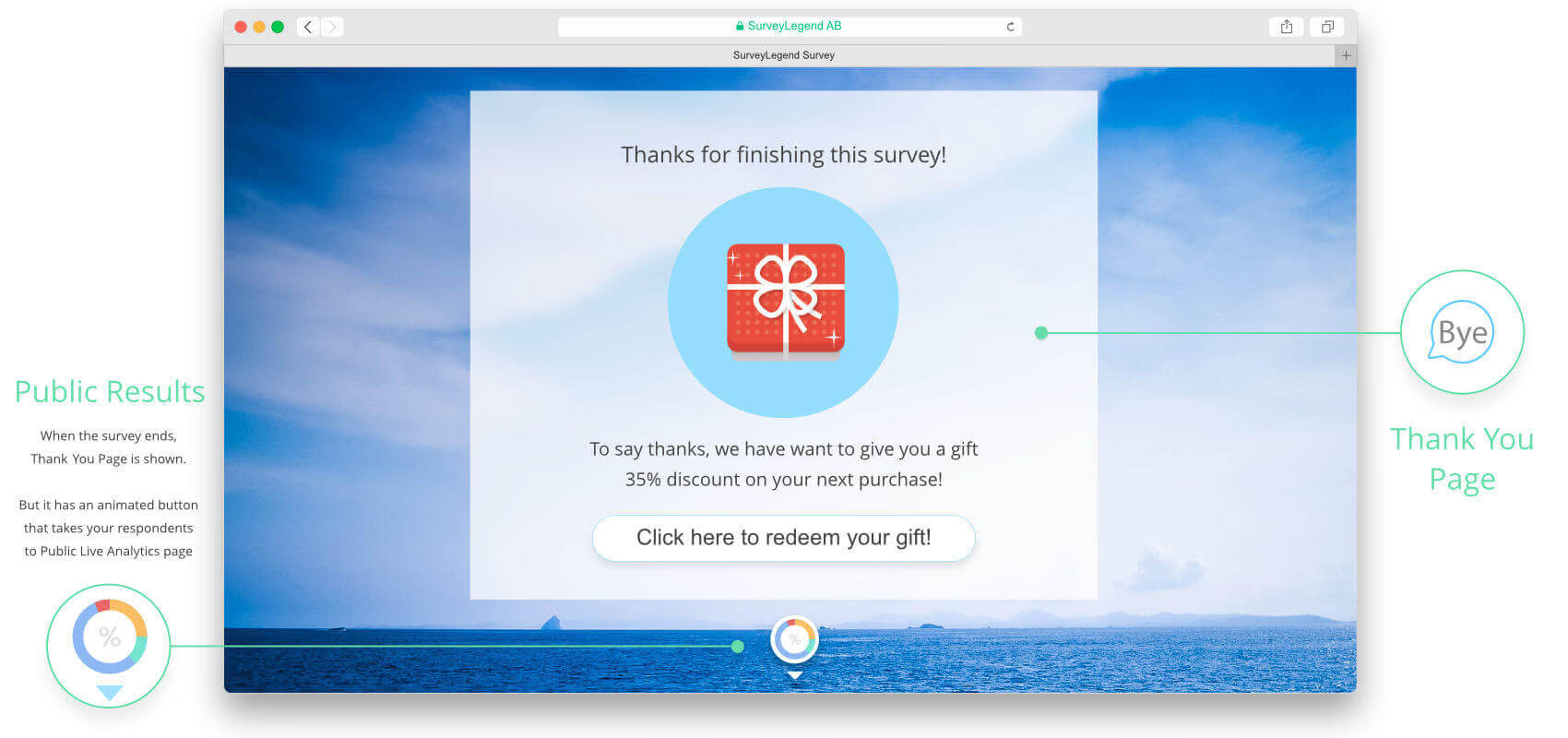
When the survey ends, Thank You Page is shown. But it has an animated button that takes your respondents to Public Live Analytics page.
2: If you have not used a “Thank you page”
When enabling this feature, you allow participants to see the results immediately after they have voted and clicked on the Submit button of your survey. We have made sure that no personally identifiable information is shown to visitors when you use this feature. And keep in mind that incorporating this feature can potentially increase the amount of data you can collect.Promoting your survey & Public Results
When you enable the Public Results page, you SurveyLegend gives you two other promotional options as well. You can let your respondents to share the Public Results page, using a Public Link; and also let them to promote participating in your surveys. As soon as you turn on this feature in the Settings section, you will notice those two other options right underneath it, as illustrated below:
Show results to respondents
Promote sharing of ‘Public Results’  Promote Participation & Sharing
The idea behind these two features is to help you spread the word about your online surveys or questionnaires.
You can take advantage of your respondent’s social networks, and let them help you collect larger quantities
of data.
Promote sharing of ‘Public Results’
Promote Participation & Sharing 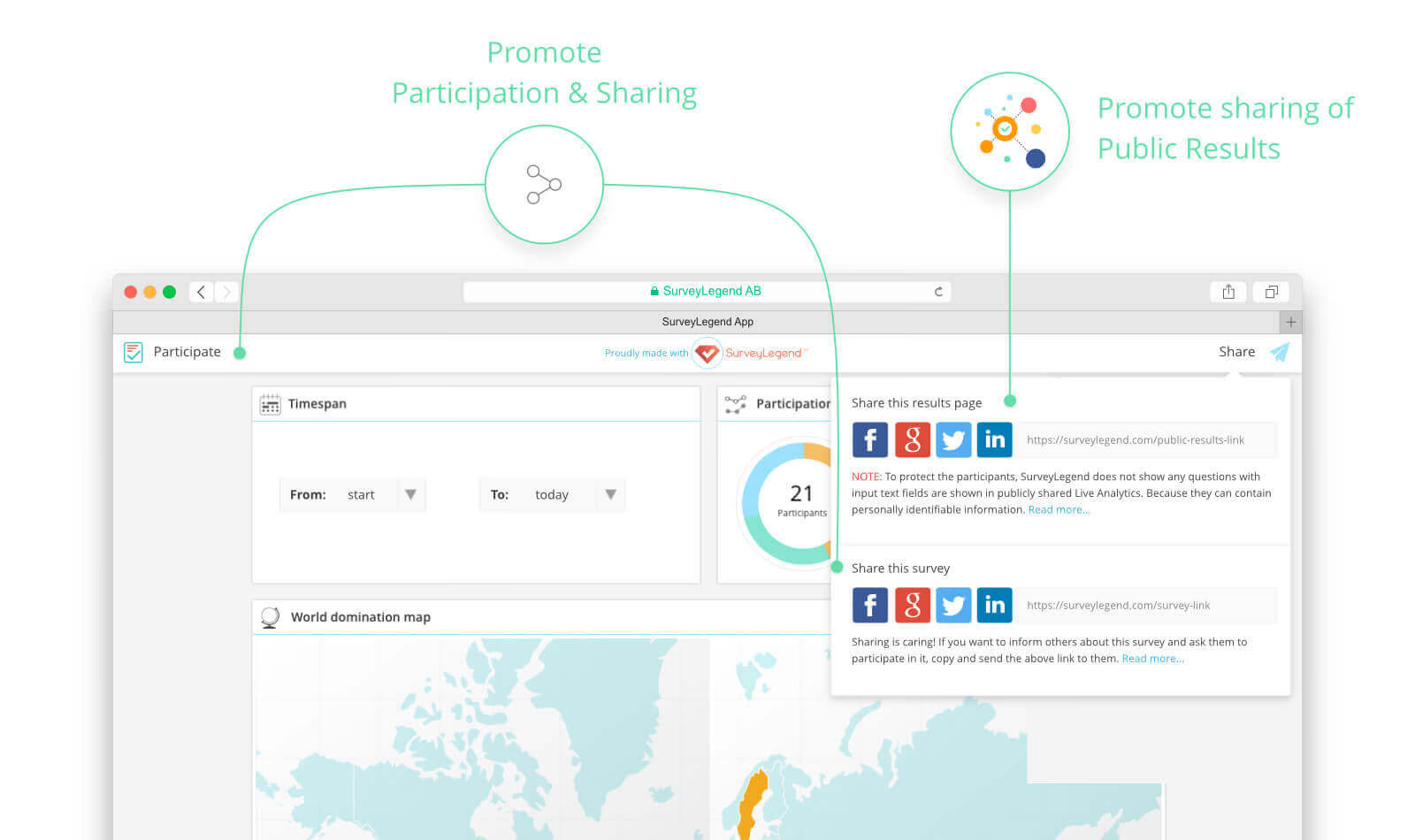
If you allow it, your respondents can promote both your surveys, and your survey’s Public and Live Analytics. It can help your survey to become viral, which in turn gives your larger quantity of responses.
Promote sharing of ‘Public Results’
Enabling this will allow respondents who finish the survey, to see a link that is generated specially for Public Results of that survey. They can copy the link, and send it to others, or simply share it on social media with a click of a button.Note:
If you change your mind in future, you can easily disable this feature by turning it off.
However, this will NOT disable the link to Public Results of your survey! This means that
anyone who has the public link, will be able to come to that page and review the public
results. Anyway, if you want to block the public results page, you have to go to Live Analytics
of your survey, or from your dashboard and disable the Public Results link from there by clicking
on  Share data. Read more…
Live Analytics
of your survey, or from your dashboard and disable the Public Results link from there by clicking
on Share data. Read more… Promote Participation & Sharing
This is an easy way for your respondent to help you share the survey itself. Now with just a click, they can share your questionnaire on their social media channels, or copy the link to survey and sued it to friends and colleagues.Note:
Please note that respondents already have the survey link that you have sent to
them, and naturally can share it with others too. But this is just an additional reminder to
make it easier for them to promote your survey, and make it go viral!
 Participate
button on the top-left corner of the Public Analytics page. This way, visitors who directly
come to the public analytics page can also have a chance to take part in the survey.
Participate
button on the top-left corner of the Public Analytics page. This way, visitors who directly
come to the public analytics page can also have a chance to take part in the survey.
 What about privacy of my respondents?
For SurveyLegend, privacy and security of
surveyors and respondents is always the first priority. So we have have made sure to protect
your respondents’ personally identifiable data, when you share the survey results publicly. That’s why
we call this feature “Public Results”. Therefore to protect personally identifiable information of
your respondents, SurveyLegend removes all answers that users type manually; and the displays rest of
the questions in the Public Results page. The reason behind this is that users might write their names,
addresses, phone numbers, emails, etc… and we/you cannot publish such information online for eveyone.
Note:
The only text input that is shown in the Public Results is the text that respondents write in
“other” choice of Single Selection or Multiple
selection. Because this naturally will not include any personally identifiable information.
 Other ways of sharing your survey data…