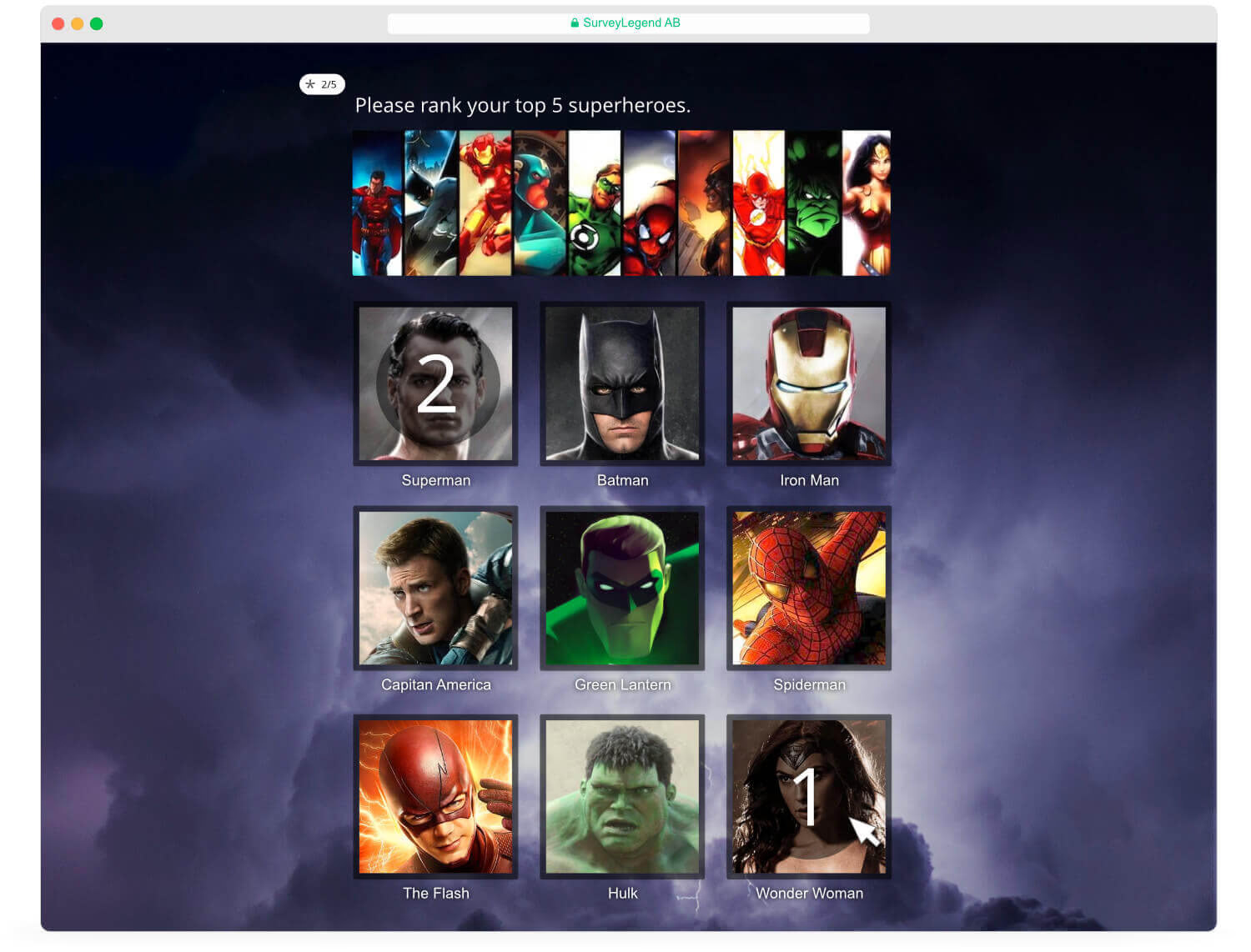




Picture Ranking
Picture Ranking lets respondents rank pictures instead of simply choosing one or several images.
Rank these product concepts from strongest to weakest.

Settings
After adding a Picture Ranking question to your survey, click or tap on it to activate edit mode and access the settings panel.
Picture Ranking lets respondents rank image choices instead of simply selecting them.
Answer is required
Require respondents to answer this question before they can continue or submit the survey.
Read more about when you should or should not make answering compulsory .
Enable picture for question
Add a picture under the question when a visual explanation helps respondents understand what you are asking.
Instructions for respondents
Add tips or instructions when respondents need extra guidance before answering.
Hide choice text for respondents
Hide labels when the pictures are self-explanatory and you want the visual choice to stay clean.
Randomize order of choices
Randomize pictures to reduce position bias in image-based choices.
Add redirect link to choices
Add a link when respondents should be able to open more information about a picture choice.
Zoomable pictures
Let respondents enlarge pictures when they need to inspect details before choosing.
Voting type
Choose whether respondents select one picture, several pictures, a limited number of pictures, or rank them.
Average
However, when you look at the results in Live Analytics, along with the “score” for each item you will also see the “average” number that each item has received through the voting process. The average is calculated based on the actual rank that the item has recieved each time, divided by the total number of times the item has been chosen. For example, you ask respondents to rank their top 3 pictures, and you get 4 responses in total. One of the pictures has been chose 3 times as first rank, and1 time as second rank. Therefore the average number will be 1.25 → ( 1 + 1 + 1 + 2 = 5 ) divided by 4 (which is the total number of times that this spesific items has been chosen....

Enabling this feature will let the survey participants see a larger version of the pictures that you include in the gallery. This will add a small button with a magnifying glass icon on each picture. Clicking or tapping on that will open a fullscreen lightbox, in which people can preview all the choices, and even select them.

Picture selection’s layout
Our Picture selection question type offers different visual layouts. This empowers you to design your survey as you wish; and make your pictures stand out as they should, by presenting them in the right layout and with the best proportions.